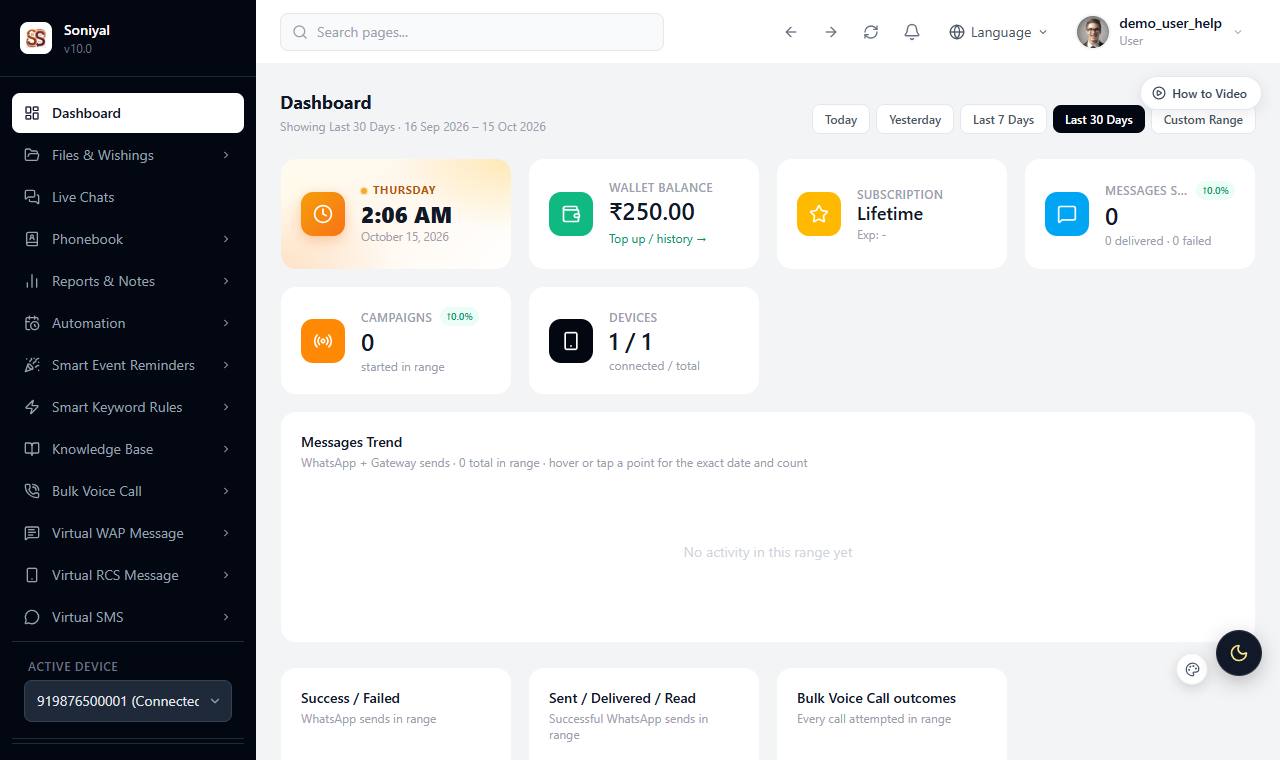
Learn what every part of the dashboard does — wallet, devices, reports and the left menu — in two minutes.
Getting started3 min readUpdated:
The dashboard is your control room. At a glance you see your wallet balance, your plan, how many messages were sent, how many campaigns ran and how many WhatsApp numbers (devices) are connected. Everything else lives in the menu on the left.
When to use it
Open it first thing every day to check that your numbers are connected and to see how yesterday’s campaigns performed.
Example
Priya runs a boutique. Every morning she opens the dashboard, sees Devices 1 / 1 connected, Messages Sent 240 and 0 failed, and then opens Reports to read yesterday’s campaign.
Pro tips
Press the Help Tour button (top bar, left of the back arrow) on any page to get a guided walk-through of that page.
Switch to dark mode with the moon button at the bottom right if you work at night, and tap the palette next to it (or Customize theme in the banner) to change colours, sidebar and textures — see the Theme Studio guide.
Pin the app to your phone’s home screen — see the “Install the app” guide.
Step by step
Pick a date range
Use Today, Yesterday, Last 7 Days, Last 30 Days or Custom Range at the top right to change every number and chart on the page.
Read the banner and cards
The coloured banner greets you and shows how many numbers are online, your wallet balance and your plan. The cards below show Messages Sent (delivered / failed), Campaigns and Devices, each with an arrow against the previous period. A yellow strip warns you when a WhatsApp number is offline.
Check the trend
The Messages Trend chart shows activity per day with the peak day; hover or tap a point to see the exact date and count.
Use Quick actions and Recent activity
Quick actions jump to New campaign, Scheduled messages, Phonebook, Templates and more; Recent campaigns and Recent messages show your latest sends, each with its status.
Use the left menu
Phonebook, Automation, Reports, Live Chats and the other tools are grouped in the left menu; tap a group to open its pages.
Select your active device
Under ACTIVE DEVICE pick the WhatsApp number you want to work with; device tools (Auto Reply, Create Campaign, Test Message) use this number.
Search any page
Type in the “Search pages…” box at the top to jump straight to a page — it searches page names only and never slows the server.
Frequently asked questions
Why is my device count 0 / 0?
You have not connected a WhatsApp number yet. Open the Connect WhatsApp guide and scan the QR code.
Can I change the numbers shown?
Yes — the date range at the top right controls every card and chart.