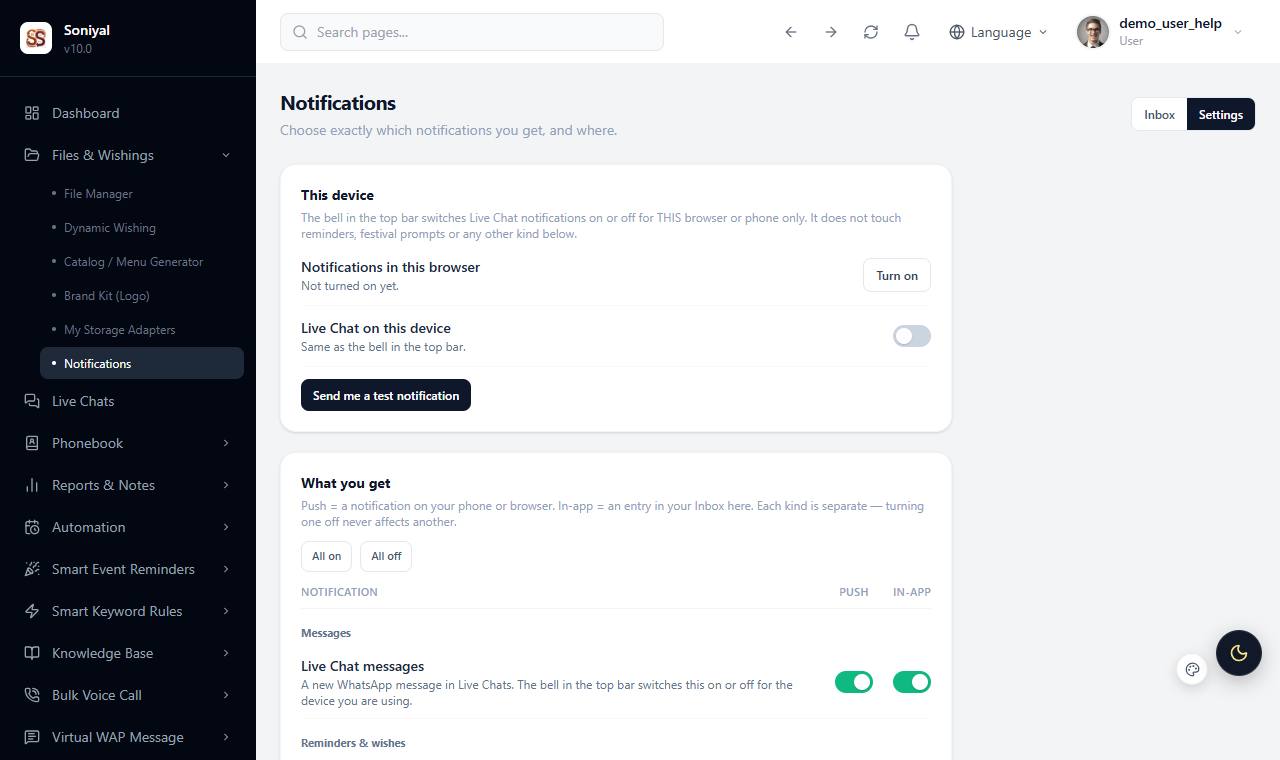
Notifications: the bell, Inbox and per-kind settings
Control exactly which notifications you get: Live Chat on the bell, everything else per kind in Notification settings.
Getting started2 min readUpdated:
The bell in the top bar switches Live Chat notifications on or off for the device you are using — and nothing else. Reminders, festival prompts, device alerts, wallet notices and other important messages keep coming until you switch them off yourself on the Notifications page.
When to use it
When Live Chat is too noisy, when you want to stop one kind of alert, or when you want a particular alert only inside the app.
Example
Sana turns the bell off during meetings so Live Chat stays quiet, but she still gets her Notes reminders and the “device disconnected” alert on her phone.
Pro tips
Use All off then switch on only what you need for a quiet setup.
“Stop all notifications on this device” removes this device completely — other devices are not affected.
Notifications you switch off in-app do not appear in the Inbox either.
Step by step
Use the bell
Click the bell in the top bar to turn Live Chat notifications on or off for this browser or phone.
Open Notifications
Go to Files & Wishings → Notifications to see your Inbox of the last 7 days.
Switch to Settings
Press the Settings tab to see the “What you get” list.
Choose per kind
For every kind (Live Chat, Notes reminders, Festival Wishing, Device disconnected and more) switch Push and In-app on or off separately.
Save
Press Save settings; the choice applies to all your devices straight away.
Send a test
Use “Send me a test notification” to confirm that this device receives notifications.
Frequently asked questions
Why is the bell grey?
Live Chat notifications are off for this device, or the browser has not allowed notifications yet.