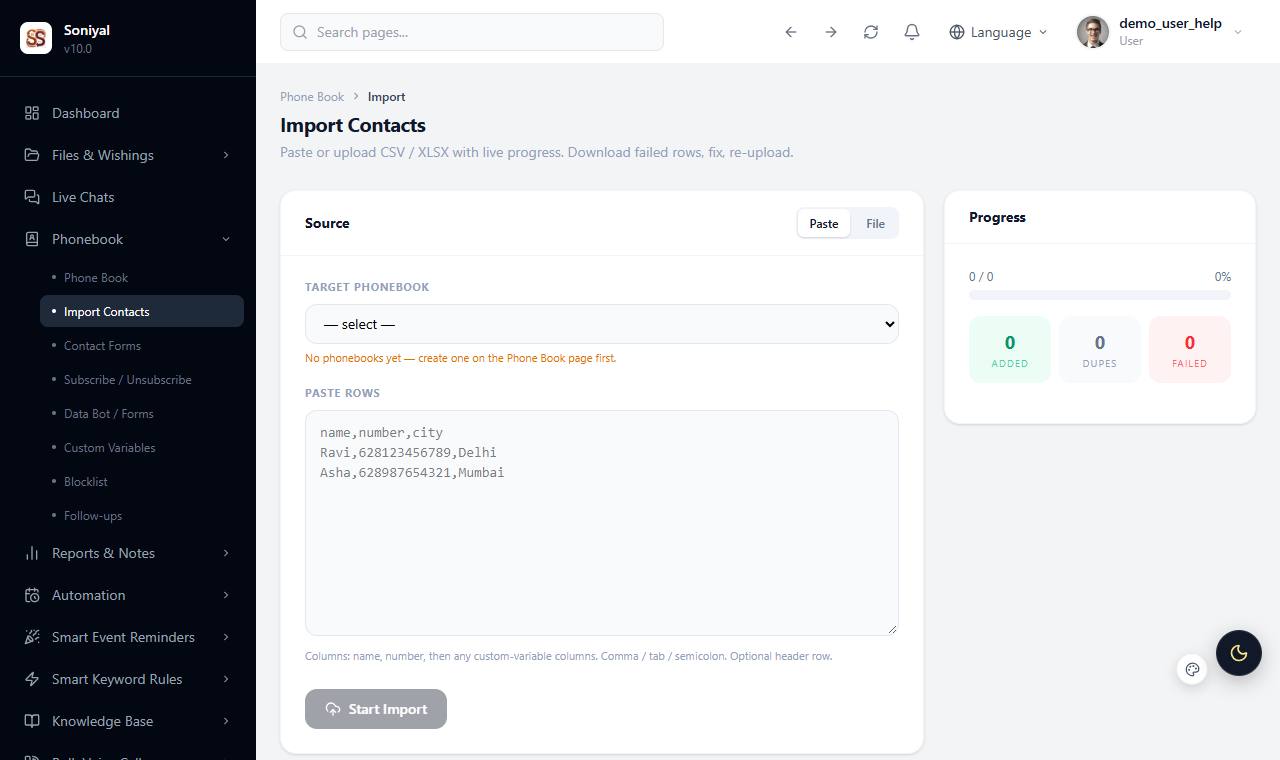
Bring hundreds of contacts in at once with live progress and a downloadable list of failed rows.
Contacts1 min readUpdated:
Import Contacts reads a CSV/XLSX file or text you paste and adds the rows to a phonebook. You watch the live counters — Added, Duplicates, Failed — and can download the failed rows, fix them and upload again.
When to use it
When you move from another tool, collect leads in a spreadsheet, or receive a list from a customer.
Example
Paste “Ravi,919812345678,Delhi” per line; the third column fills the custom variable “city”, ready to use as {city}.
Pro tips
Include the country code in every number.
The first line may be a header row.
Separate columns with comma, tab or semicolon.
Step by step
Open the page
Go to Phonebook → Import Contacts.
Pick the target phonebook
Choose where the contacts should go (create one first if the list is empty).
Paste or upload
Use the Paste tab for text or the File tab for CSV / XLSX. Columns are: name, number, then any custom-variable columns.
Start Import
Press Start Import; the progress bar and the Added / Dupes / Failed counters update live.
Fix failures
Download the failed rows, correct the numbers and import that file again.
Frequently asked questions
What are Dupes?
Numbers already present in that phonebook; they are skipped, not added twice.
Why did rows fail?
Usually an empty or invalid number; the failed list tells you which.