Respect opt-outs automatically: keyword-based unsubscribe, a blocklist and an exportable unsubscribed list.
Contacts1 min readUpdated:
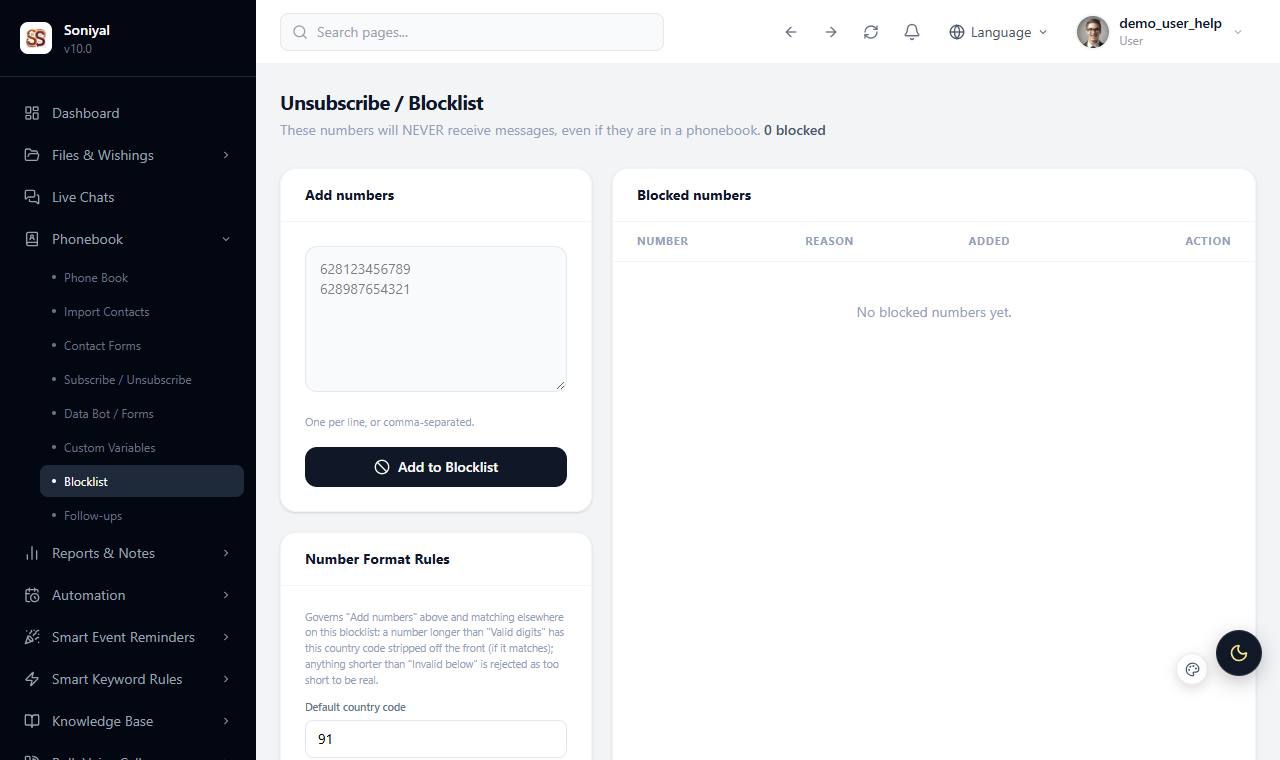
Customers who do not want your messages should stop receiving them. Subscribe / Unsubscribe lets people opt in or out by sending a keyword (for example STOP), and the Blocklist keeps chosen numbers out of auto replies and welcome messages.
When to use it
Always — it protects your number from complaints and keeps you compliant.
Example
A customer replies STOP to your offer. They are added to the unsubscribed list and your next campaign automatically skips them.
Pro tips
Add “reply STOP to opt out” at the end of bulk messages.
Numbers are matched in every format (with or without country code).
Step by step
Open Subscribe / Unsubscribe
Go to Phonebook → Subscribe / Unsubscribe.
Set keywords
Add words like STOP or UNSUBSCRIBE (and START to subscribe again) and the reply to send.
Check the unsubscribed list
Open the Unsubscribe list to see who opted out; export it to CSV or Excel.
Use the Blocklist
Open Phonebook → Blocklist and add numbers that should never get automatic replies.
Switch it on
Turn on the blocklist switches (welcome message, auto reply) so they are respected.