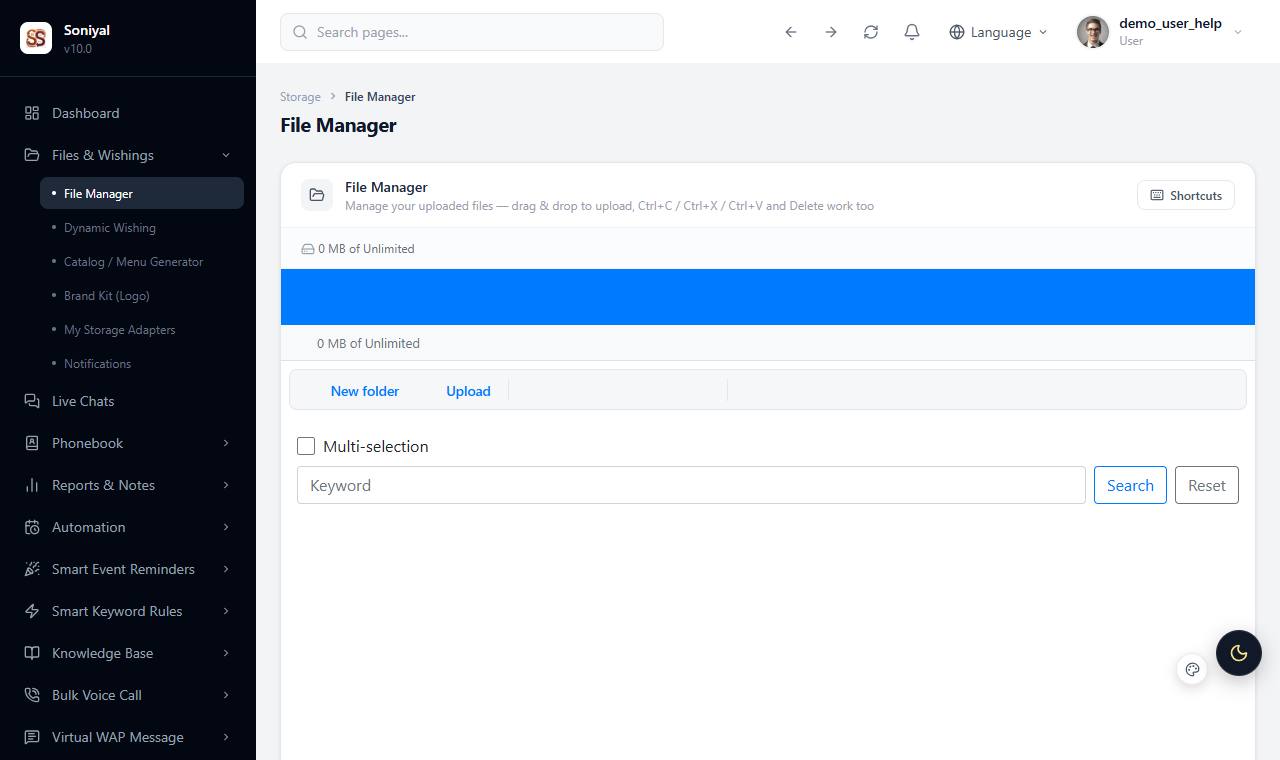
Upload, organise, crop, compress and reuse images, videos and documents across the app.
Design & files1 min readUpdated:
File Manager is your personal file library. Images and documents you upload here can be picked inside campaigns, templates, scheduled messages and Virtual WAP campaigns.
When to use it
Whenever you attach media or reuse the same file again and again.
Example
A shop uploads its price-list image once and selects it in every campaign.
Pro tips
Compress large images — they send faster and cost less data.
Name files clearly: “diwali-offer-2026.jpg”.
Step by step
Open File Manager
Go to Files & Wishings → File Manager.
Upload
Drag files in or use the upload button; create folders to stay organised.
Edit images
Crop or resize an image before using it.
Compress or zip
Reduce size, or zip several files for download.
Check your quota
The usage bar shows how much storage you have used.
Pick the file
When a page asks for a file, choose it from File Manager.