Send one message to a whole phonebook: choose the sender, pick contacts and message, then set the delay and time.
Send messages2 min readUpdated:
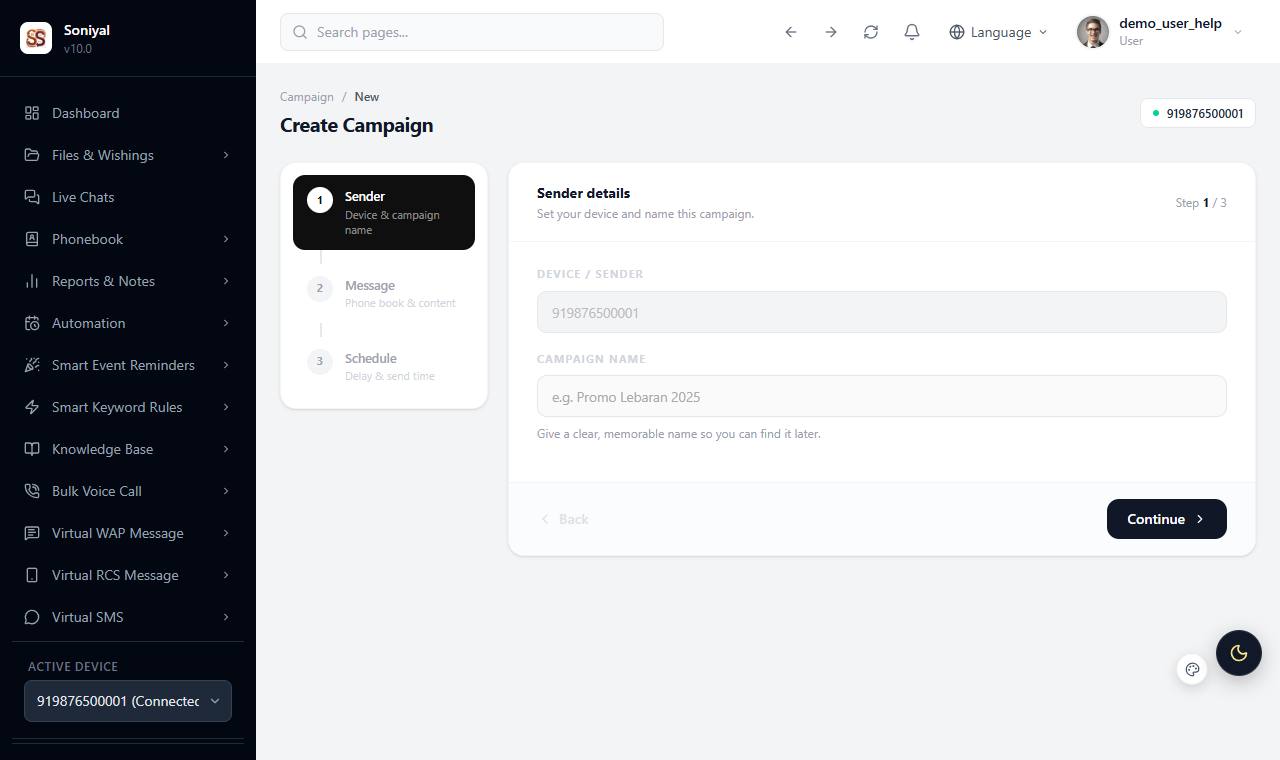
A campaign sends one message to everybody in one or more phonebooks. The wizard has three steps — Sender, Message and Schedule — and shows your progress on the left, so you can go back and fix anything before it starts.
When to use it
For offers, announcements, festival wishes, payment reminders or any message that should reach many people at once.
Example
Ravi names the campaign “Weekend sale”, selects the phonebook “Regular customers”, writes “Hi {name}, 20% off this weekend!”, sets a 20-second delay and sends it at 6 PM.
Pro tips
Always send a Test Message to yourself first.
Use a delay of at least 10–20 seconds and vary your text with Spintax to protect your number.
Send large lists in smaller batches during the day instead of all at once.
Step by step
Open Create Campaign
In the left menu go to Manage WhatsApp → Create Campaign (a device must be selected).
Step 1 — Sender
Check the device shown and type a clear campaign name such as “Diwali offer — Delhi”, then press Continue.
Step 2 — Message
Choose the phonebook(s) that should receive it and write your message. Add an image, video or document if you want, and use tags like {name} to personalise.
Step 3 — Schedule
Set the delay between messages (a gap keeps your number safe) and choose to send now or at a later time.
Start
Review the summary and start. Watch progress on the Campaign / Blast page.
Frequently asked questions
Can I stop a running campaign?
Yes. Open the Campaign / Blast page and pause or stop it from there.
What if a number is not on WhatsApp?
It is marked failed in the report and you are not charged for it.