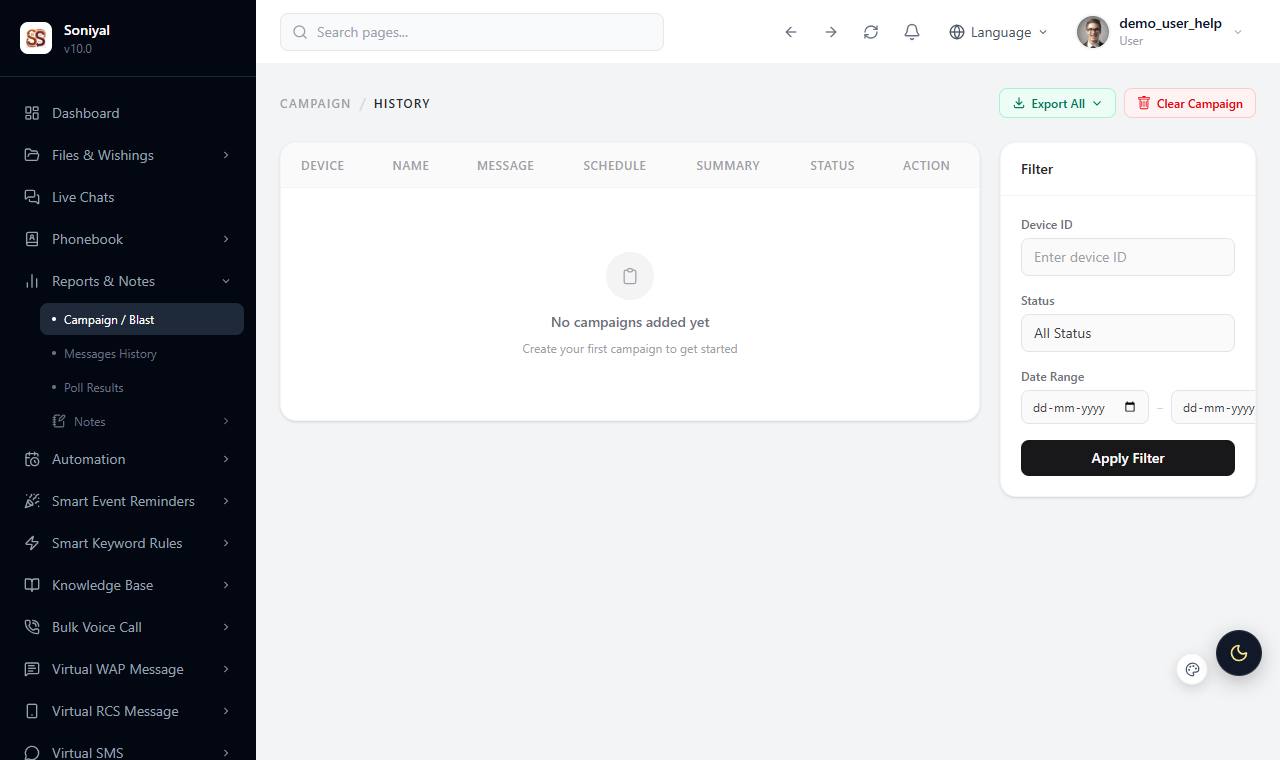
Open the Campaign / Blast page to see how every campaign performed and which numbers failed.
Send messages1 min readUpdated:
After you start a campaign it appears on the Campaign / Blast page with its status and counts. Open any campaign to see each number’s result, so you know what worked and what to retry.
When to use it
After every campaign, and whenever a customer says they did not receive something.
Example
Of 500 numbers, 470 were delivered and 30 failed. Neha downloads the failed numbers, corrects typing mistakes and re-sends only to those 30.
Pro tips
Delivered and Read counts tell you how engaged your list is.
Export reports to CSV or Excel for your records.
Step by step
Open the page
Go to Reports → Campaign / Blast.
Find your campaign
Use the search box, the status chips and the date filter to locate it by name. Show entries lets you see 10, 20, 30, 50, 100 or 200 campaigns at once (your choice is remembered).
Read the status
See whether it is waiting, running, paused or finished, and how many were sent, delivered and failed.
Open the details
Open a campaign to see the result of each number and the failure reason.
Act on failures
Fix wrong numbers in the phonebook and run a small follow-up campaign for the failed ones.
Frequently asked questions
Why are some messages “failed”?
Common reasons are numbers not on WhatsApp, a typo, or the device disconnecting during the campaign.
How long are reports kept?
Reports stay as long as your plan and the admin’s cleanup settings allow.