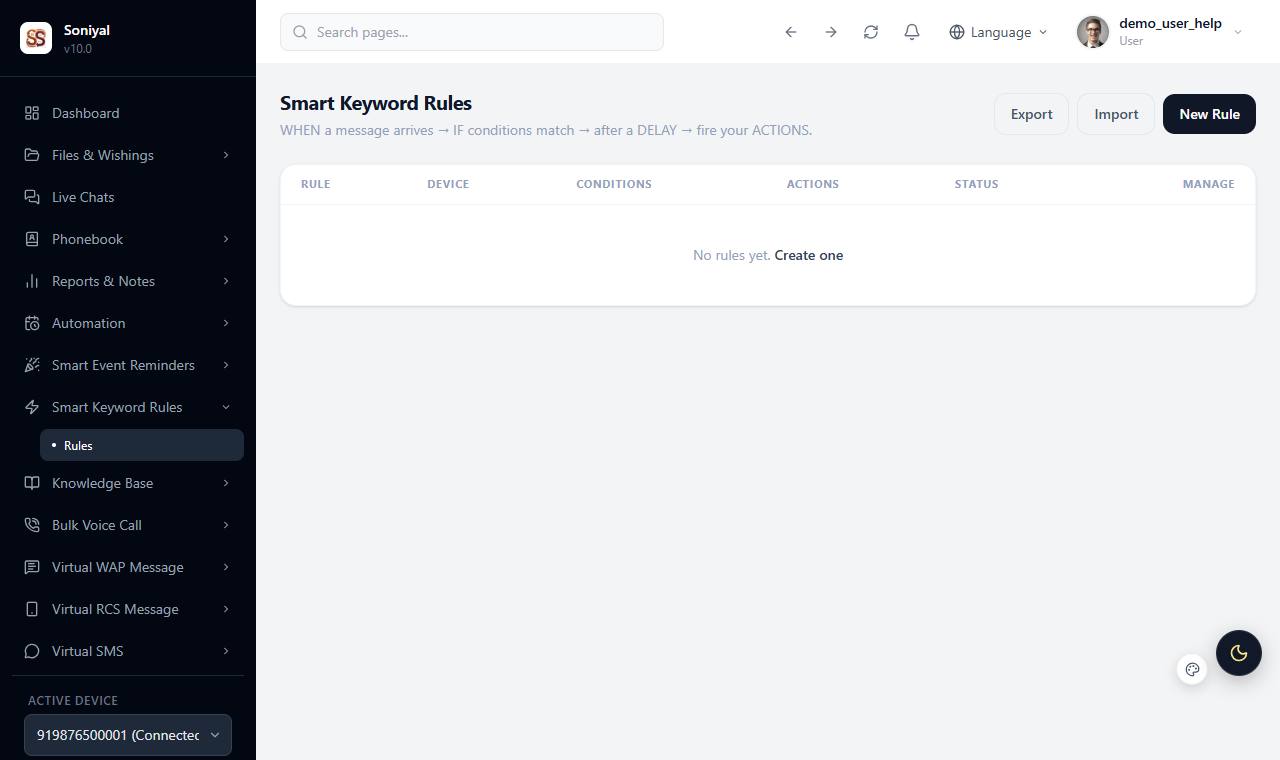
Build powerful rules for incoming messages: match, wait, then reply, forward, call a webhook and more.
Automation2 min readUpdated:
Smart Keyword Rules go beyond simple auto replies. Each rule has four parts: WHEN a message arrives, IF conditions match (words, sender, group, media type, channel), an optional DELAY, and then one or many ACTIONS.
When to use it
When you need real routing: forward orders to staff, tag leads, reply with a delay or trigger another system.
Example
If a group message contains “order” → wait 10 seconds → forward it to the sales manager’s number and reply “We got your order!”.
Pro tips
Start with one condition and add more after it works.
Use Import / Export to back up or share rules.
Check the live matching summary on the page when a rule does not fire.
Step by step
Open the rules
Go to Smart Keyword Rules → Rules and press Create.
Choose the watching device
Pick which number the rule listens on; the number that sends the reply can be different.
Add conditions
Match words, specific senders, groups, media types or channels; combine them with AND / OR.
Set a delay
Optionally wait seconds or minutes before acting.
Add actions
Reply, forward to another number, send to groups, post a status, call a webhook or cURL, and more.
Save and test
Save the rule, send a matching message from another phone and check the result.
Frequently asked questions
Can a rule watch one number and reply from another?
Yes — “Watch device” and “Send from device” are separate.